Wiko View Screen Replacement
ID: 180573
Description: Use this guide to replace the screen for your...
Steps:
- Allow your battery to drain below 25% before starting this repair. A charged battery may catch fire if damaged.
- Fully power off your phone and unplug any cables.
- Ground yourself the best you can to avoid damaging any little component.
- If you have one, you can use the iFixit Anti-Static Wrist Strap.
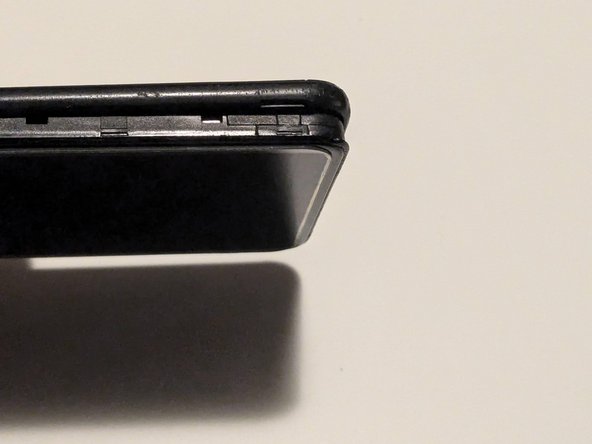
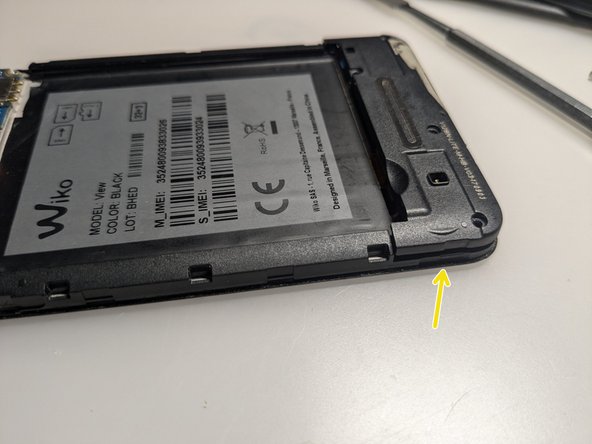
- Locate the small gap in the bottom-right corner to separate the back cover from the phone's frame.
- Pull slowly until you can lift the corner enough to grab the back cover with your fingers. You can use an opening pick for help.
- Pull the back cover along all the sides to completely separate from the rest of the phone.
- The back cover can tolerate a little bending but don't bend too much otherwise it will crack.
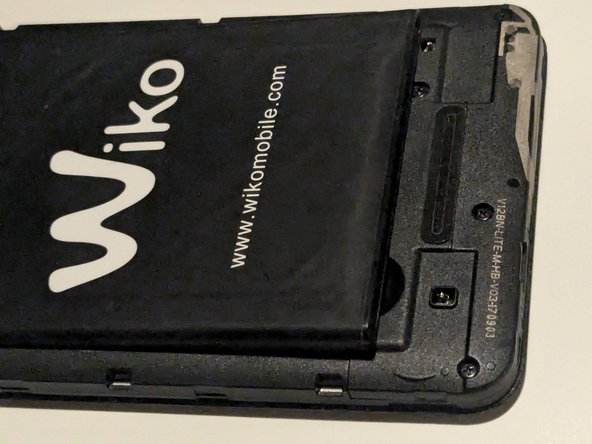
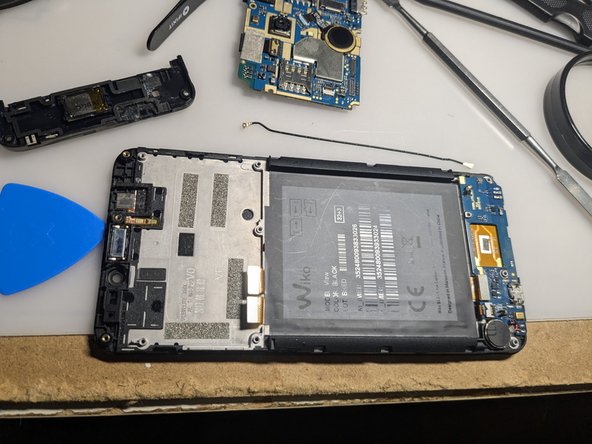
- Once the back cover is completely removed, you can remove the battery by lifting it from the bottom-left corner.
- There is another small gap for help.
- You won't need the help of any tool for this.
- From now on, be very careful not to damage the tiny metal springs. The next steps will remove any protection for them; they are thin and very easy to break.
- If you break one of them, you need to do precision soldering (or just tape it back in place with electrical tape for a quicker but very cheap solution).
- Remove every SIM or SD card from the slots.
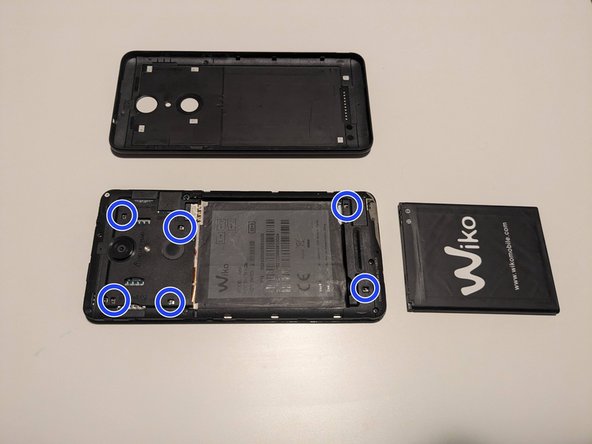
- Unscrew all the six screws from the top plastic cover.
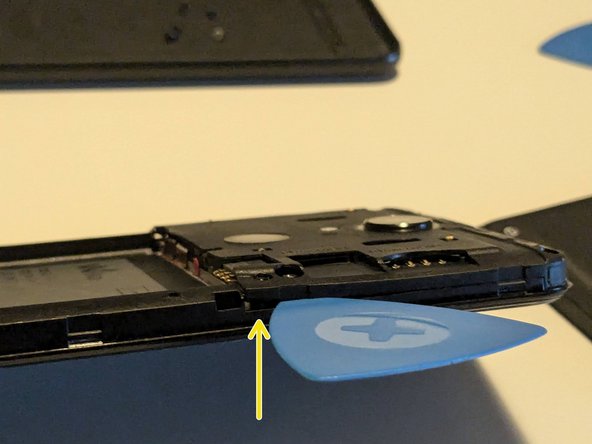
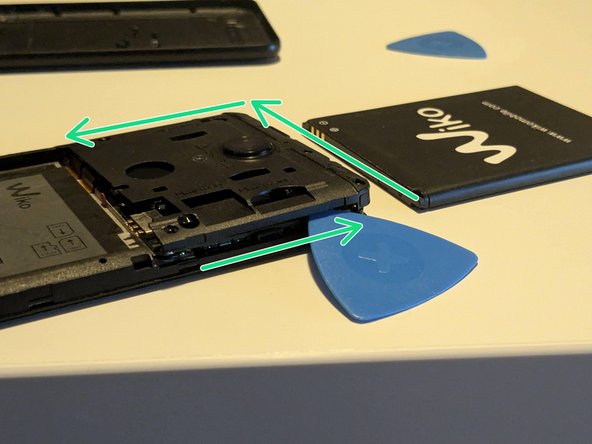
- Start to lift gently the cover using opening picks from its bottom-right corner.
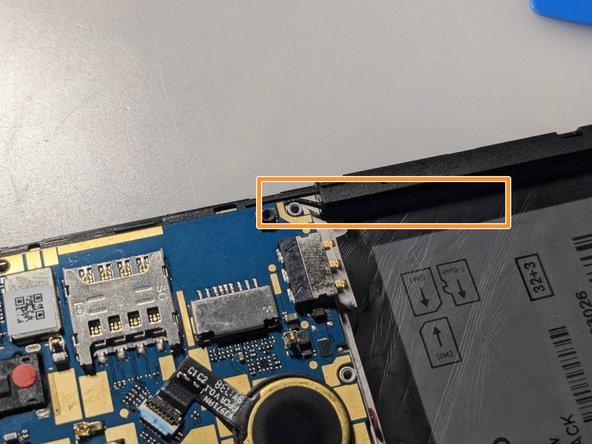
- Only insert the pick up to 3.5 mm to avoid damaging the internals.
- Keep pushing the opening pick along all the external sides of the plastic cover.
- You need to open all the plastic clips hidden under the cover itself. You can notice a soft "pop" when opening successfully one of them.
- When all the clips are opened, you can lift the cover completely with caution.
- With the help of a tweezer, unplug the power buttons' connector.
- It's a "no-fuss" ribble cable connector.
- Unplug the display-touch digitizer and bottom circuit connectors with the help of a spudger.
- They are both press connectors.
- Unscrew all four screws.
- Like in the Step 4, use an opening pick to lift and remove carefully the cover from the bottom-left corner.
- We are not going to remove the bottom motherboard in this guide.
- Unscrew the two screws that hold the motherboard.
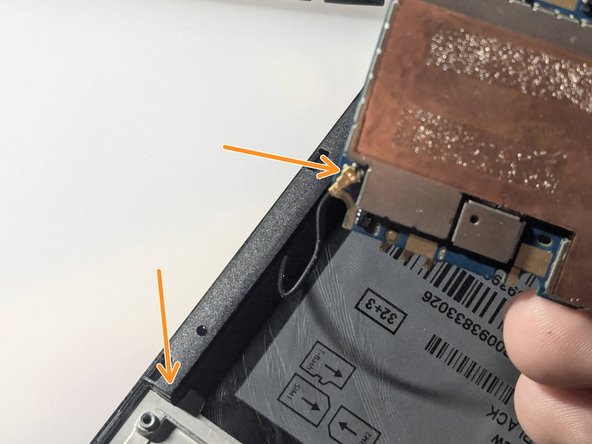
- Do not apply force to remove the motherboard, otherwise you will cut the antenna cable.
- Gently lift the motherboard passing the cable under the plastic frame and go to the next step.
- Unplug the antenna cable from both ends.
- It has a coaxial connector.
- Remember to reconnect the antenna cable before remounting the motherboard.
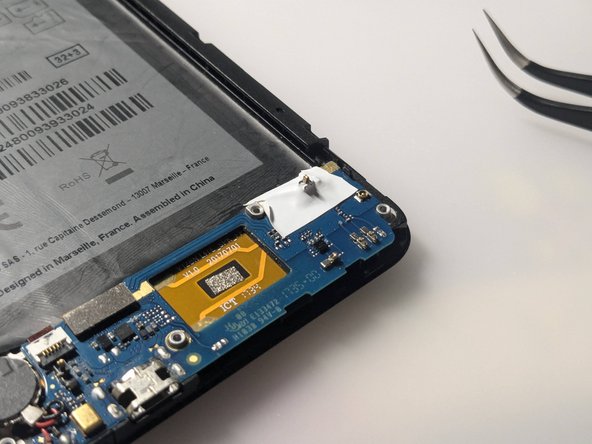
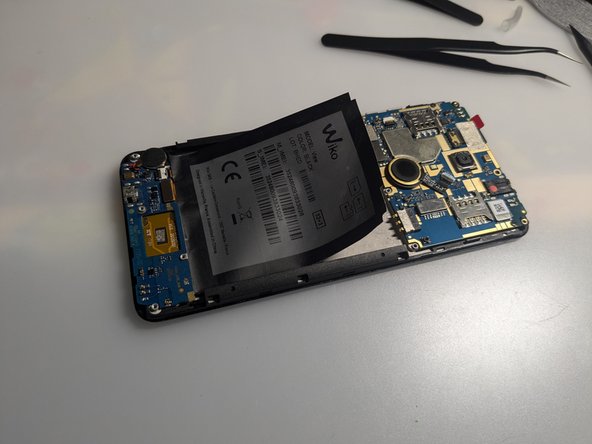
- With the help of a tweezer, remove slowly the back sticker.
- Take note of the codes written in case it breaks.
- After the substitution, you can put it back where was.
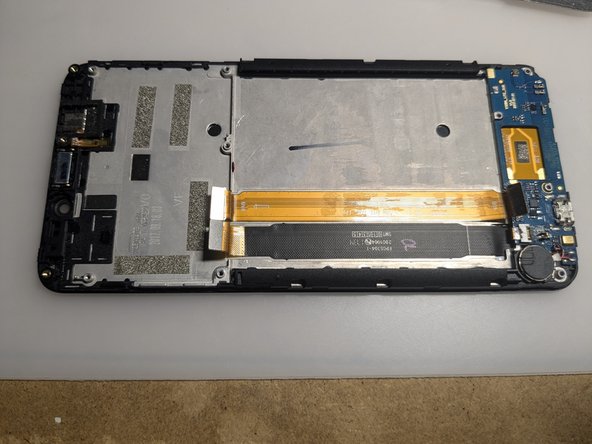
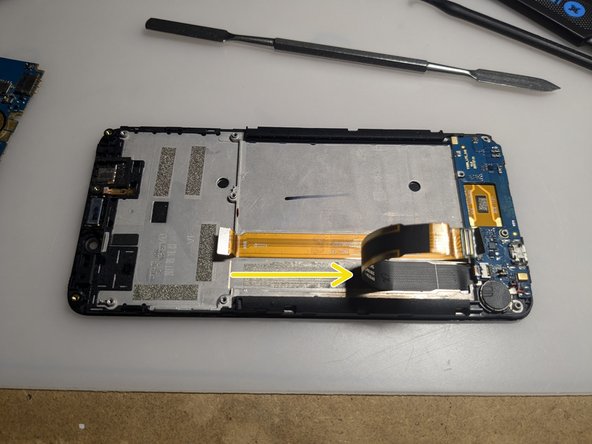
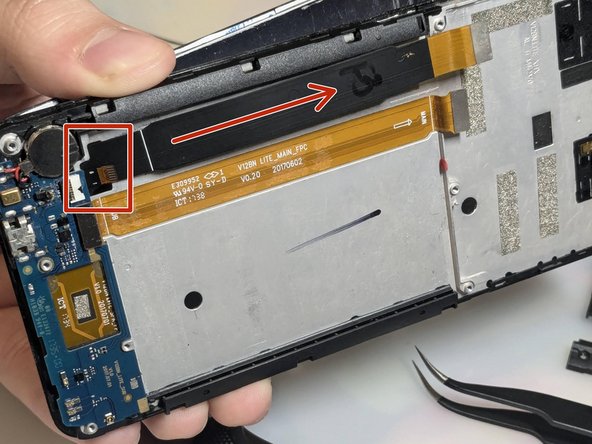
- Unplug the cable that links the two motherboards.
- Do not completely remove the cable from the metal case.
- First, unplug the cable from the bottom motherboard.
- It's a "no-fuss" ribble cable connector.
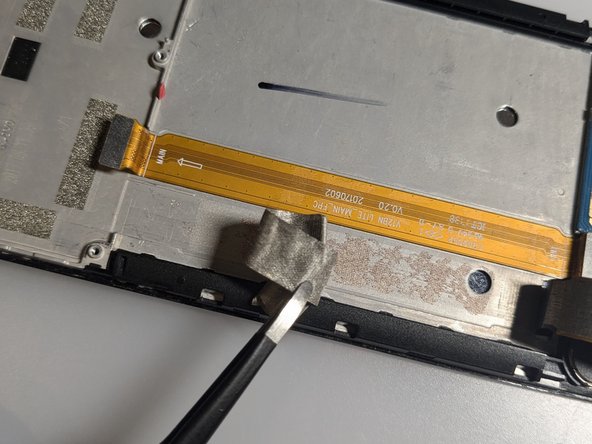
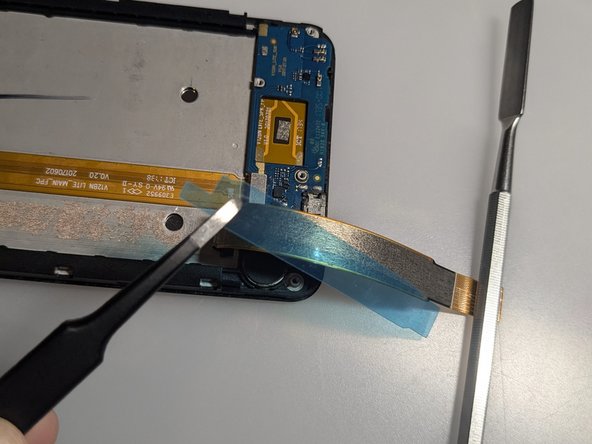
- Then slowly pull the bigger cable.
- The cable is glued to the metal case.
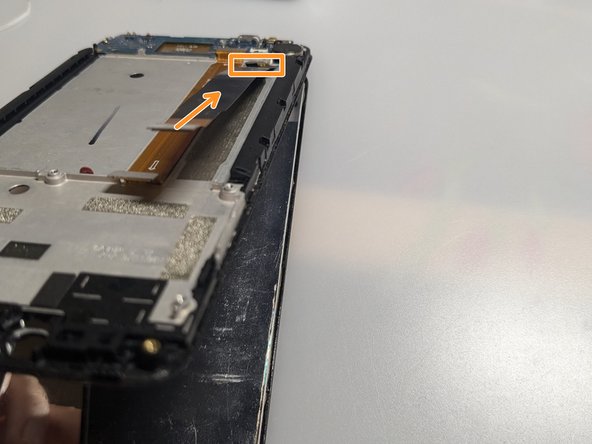
- Be sure to lift the cable for all its length, so the adhesive won't keep it in place and break it in the following steps.
- Do not completely remove the cable - it is linked to the display under the metal case.
- Remove the grey adhesive.
- Heat an iOpener and apply it to the right edge of the screen for two minutes.
- A hair dryer, heat gun, or hot plate may also be used, but be careful not to overheat the phone - the display is susceptible to heat damage.
- Apply a suction cup to the screen, as close to the center of the right edge as possible, and pull up with strong, steady force to create a gap between the bezel and the frame.
- Insert an opening pick into the gap.
- Depending on the age of your phone, this may be difficult. If you're having trouble, apply more heat to the edge and try again. You can also use a Jimmy instead (being very careful not to scratch the metal frame). If your display is badly cracked, covering it with a layer of clear packing tape may allow the suction cup to adhere.
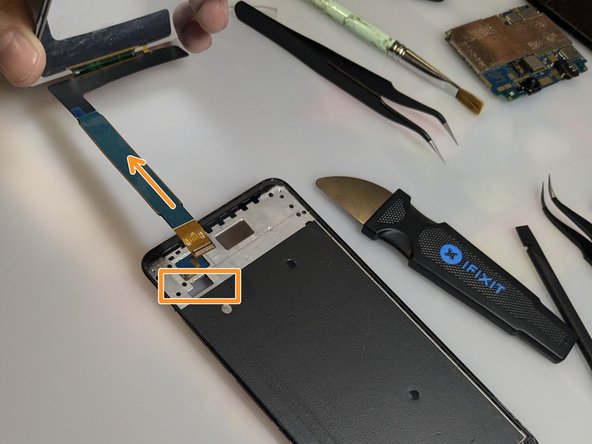
- Release all the clips and unglue the screen.
- Pull the cable through the frame's opening.
- Remove the adhesive backings from the new part
- Remove the protective adhesive in front of the screen only when the reparation is complete.
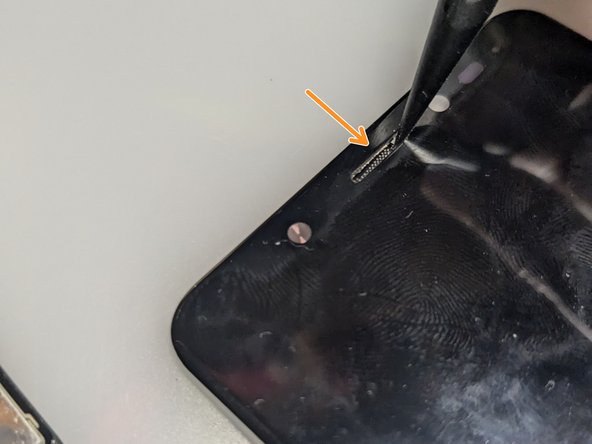
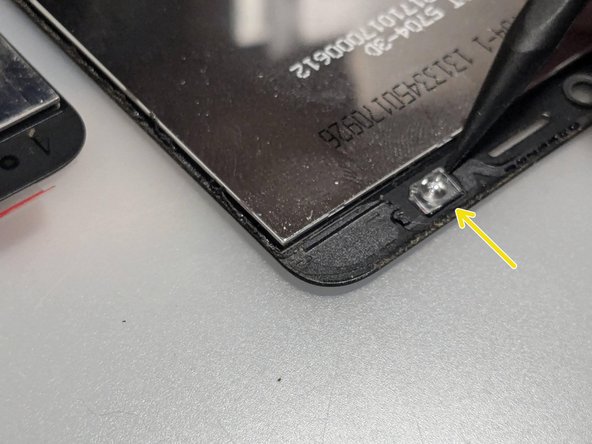
- Compare your new replacement part to the original part - you may need to transfer the remaining components.
- For example:
- The ear capsule grid.
- The lens of the internal flash.
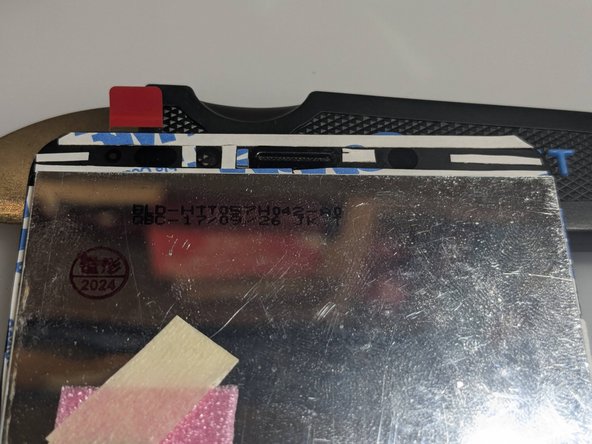
- Fill all the screen's borders with the double-sided adhesive.
- You can use the precision tweezer and spudger to help you position and compress the tape in place.
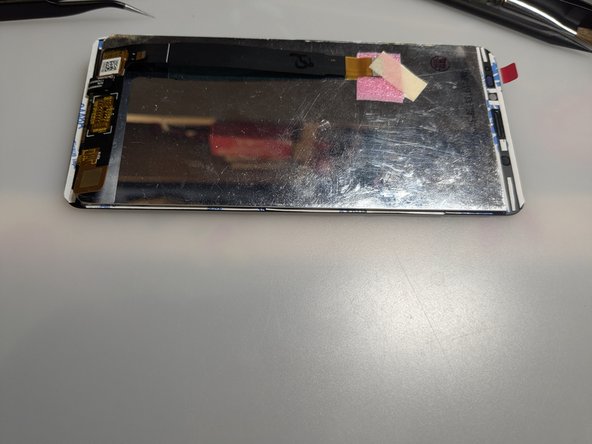
- Insert the new display cable in the metal case opening.
- Remove all the protective layers from the placed tape.
- Push the display into the frame.
- Let the glue dry.
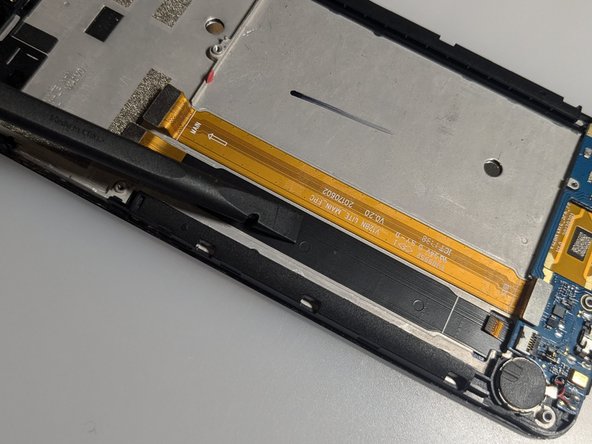
- Remove the protective layer from the main cable's adhesive.
- Place the main cable parallel to the orange one.