Apple Extended Keyboard A1243 Key Replacement
ID: 182262
Description: Use this guide to the missing or stuck key on...
Steps:
- Place the keyboard on a flat surface.
- Inspect the key that is stuck or the key mechanism where the missing key was.
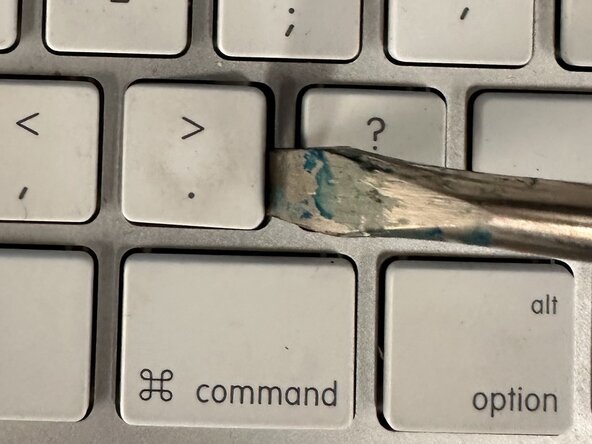
- If the key is stuck, gently insert a spudger under the edge of the keycap.
- Start from one corner and carefully pry the keycap from the keyboard, working your way around it until it pops out.
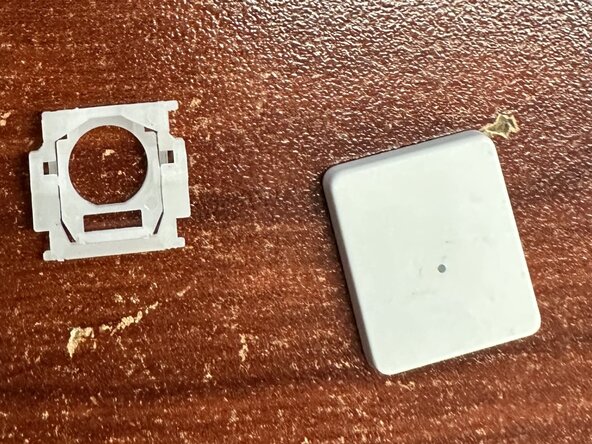
- Inspect the key mechanism (scissor switch under the keycap) for any damage or debris.
- If the keycap is dirty, clean it by soaking it in warm soapy water.
- Ensure the key mechanism and cap are dry before reassembling.
- If the mechanism is damaged, you will need to replace it.
- Install the new or previously removed key by aligning the keycap with the key mechanism. Align the top of the scissor-switch to the metal notches on the keyboard and then align the bottom of the switch, ensuring you hook the scissor-switch onto the metal tab on the keyboard.
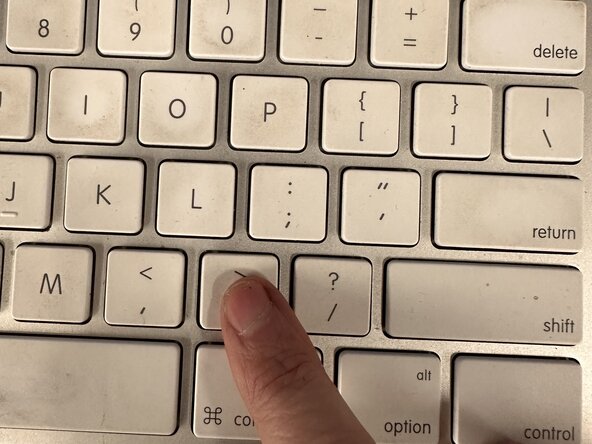
- Press down firmly on the keycap until it snaps into place.
- Test the key by plugging in or turning the keyboard on to see if it works correctly.