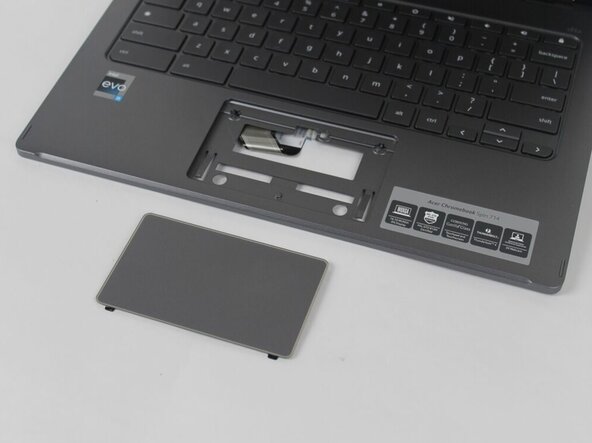
Acer Chromebook Spin 714 CP714-2W-56B2 Trackpad Replacement
ID: 185087
Description: If your Acer Chromebook Spin 714...
Steps:
- Flip the laptop to show the bottom side.
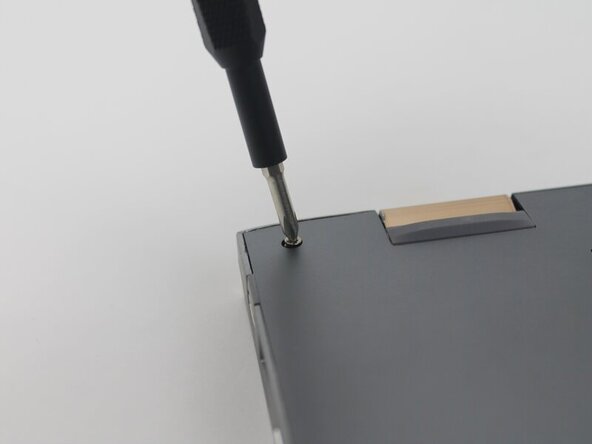
- Remove the nine 6.5 mm screws using a JIS #1 screwdriver.
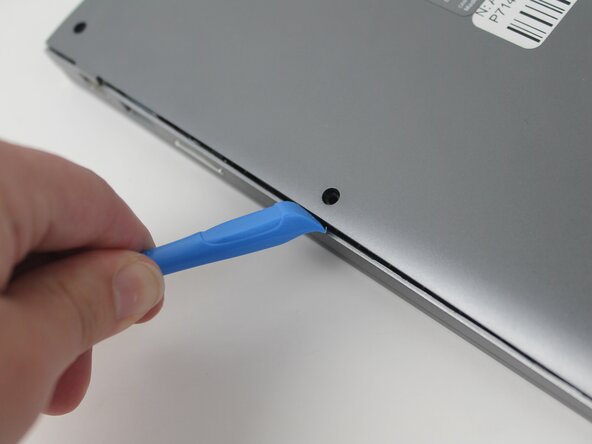
- Use a plastic opening tool to separate the outer casing and panel; gently work the tool around the entire outer edge
- The easiest place to start is at one of the hinges. The corners can be somewhat difficult.
- Be gentle. The internal clips can snap.
- Peel off the tape covering the wires.
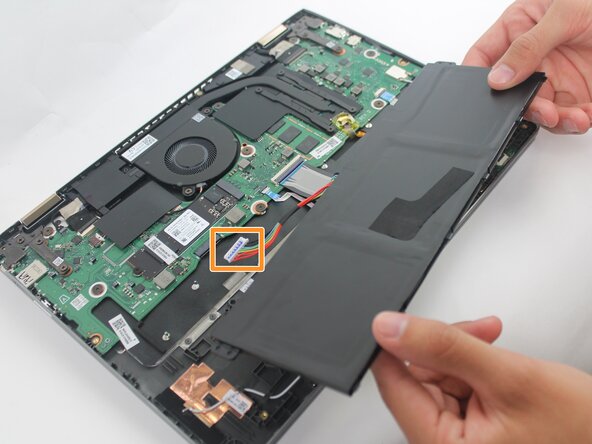
- Lift the battery from its studs, and place it closer to you.
- The battery is not clamped or screwed onto the frame. Once you disconnect the battery, you are able to safely remove it by picking it up.
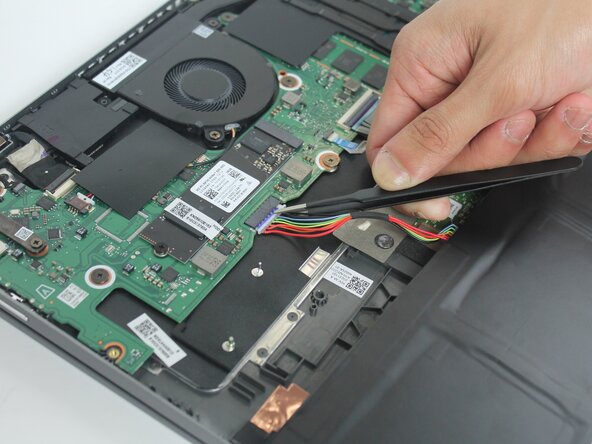
- Unplug the rainbow wires connecting the battery to the motherboard.
- Be sure to only grab the white portion of the plug, do not overstretch the rainbow wires.
- Remove the battery from the laptop.
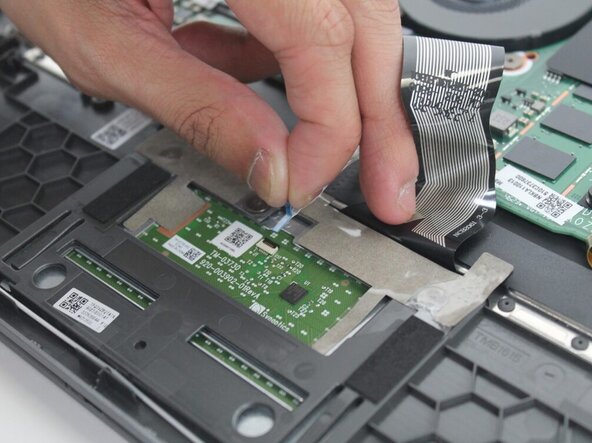
- Pull the blue ribbon by gently lifting up the flap to disconnect the trackpad from the motherboard.
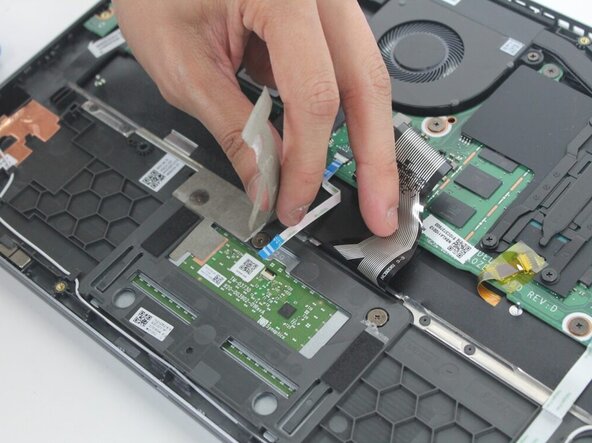
- Peel off the sticker that covers the screws locking the trackpad in place.
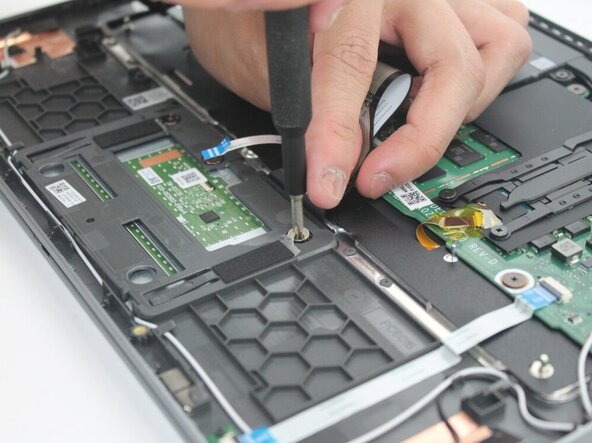
- Using the Phillips #00 screwdriver, remove the three 2 mm screws securing the trackpad to the frame.
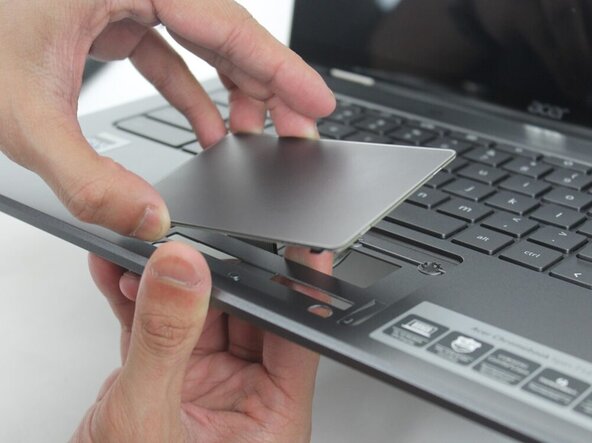
- From the internal side of the frame, gently apply upward pressure to the bottom side of the trackpad.
- The trackpad will pop free from the palm rest opening as you push it outward.
- Carefully lift the trackpad away from the laptop, noting its orientation for reinstallation.