NVIDIA Shield TV P2897 (2017) 16GB 4K - Firmware Reset
ID: 190475
Description: Factory reset the Nvidia Shield Tv P2897 to...
Steps:
- NVIDIA Shield TV (P2897, 2017 model)
- USB 2.0 keyboard (3.0 too much of a power draw)
- Windows PC with USB-A ports
- USB-A to USB-A cable (or USB-A to micro-USB if required)
- Zadig utility for installing APX driver: https://zadig.akeo.ie
- Platform Tools (ADB + Fastboot): https://developer.android.com/studio/rel...
- Official NVIDIA firmware for SHIELD TV 2017: https://developer.nvidia.com/shield-open...
- (e.g., nv-recovery-image-shield-2017-atv-9.2.1.tgz + USB Package)
- For this example, the Enplug Signage firmware was on the Nvidia Shield, and there was some difficulty attempting to reset the device as normal, as no known recovery image was available.
- The goal is to restore the device to a factory image.
- Use a USB 2.0 Keyboard (USB 3.0 may not work! Too much power draw!)
- Unplug power from the Shield.
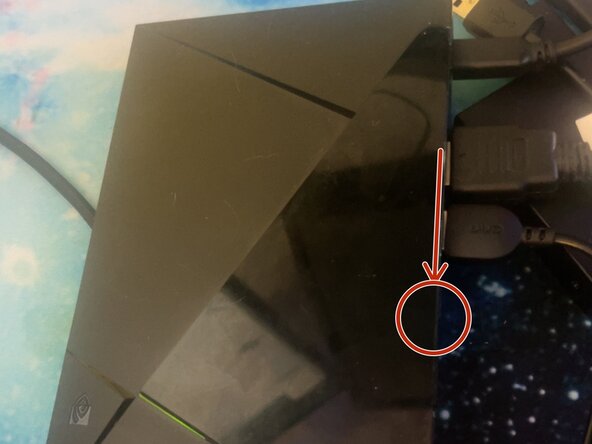
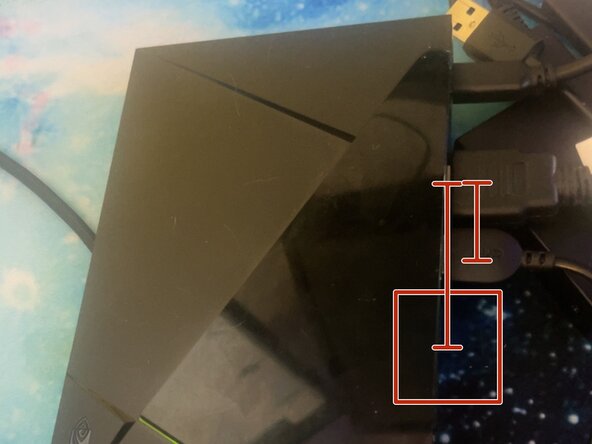
- Plug the USB keyboard into the port closest to HDMI. Leave the next port for USB TO USB to pc.
- Hold down A + B on the keyboard.
- While holding A + B, plug in power.
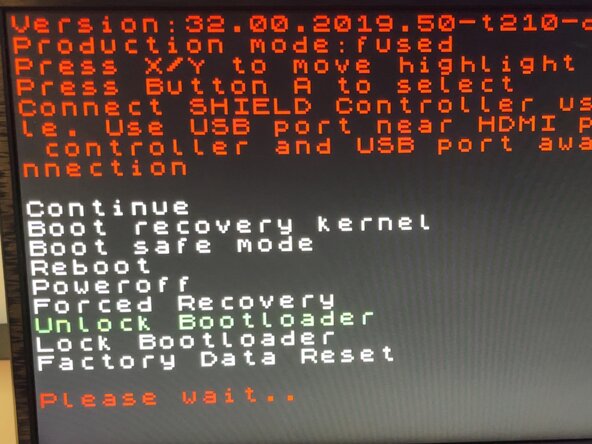
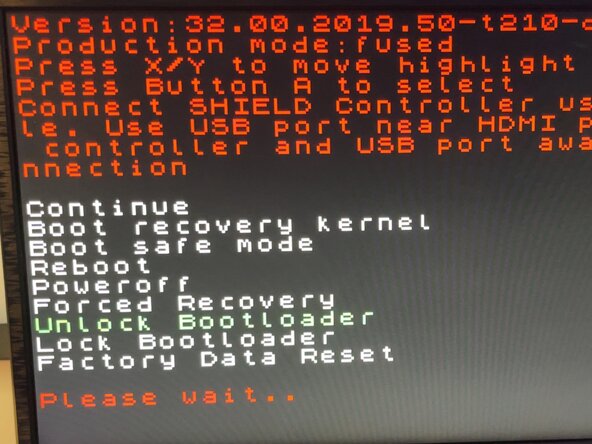
- You should enter the NVIDIA Shield boot menu as seen in image. (If it cuts out or keeps booting, play with how quickly you release A + B, sometimes it can be sensitive)
- If you choose "Reboot to Recovery" without being connected to a PC, you'll see a "No Command" screen and may get stuck. I was only able to do this from fastboot.
- Download NVIDIA's official recovery firmware:https://developer.nvidia.com/shield-open...
- Use the one for: SHIELD TV 2017 (P2897)
- Example: nv-recovery-image-shield-2017-atv-9.2.1.tgz
- Extract the .tgz file into a folder.
- Download ADB & Fastboot (platform-tools): https://developer.android.com/studio/rel...
- Connect Shield to PC via USB. (Farthest from HDMI!) It may not be showing on the computer yet, but it will soon!
- (Note: If this does not work, I first attempted factory reset, and unlock bootloader, as well as forced recovery for these steps. These were visible in image)
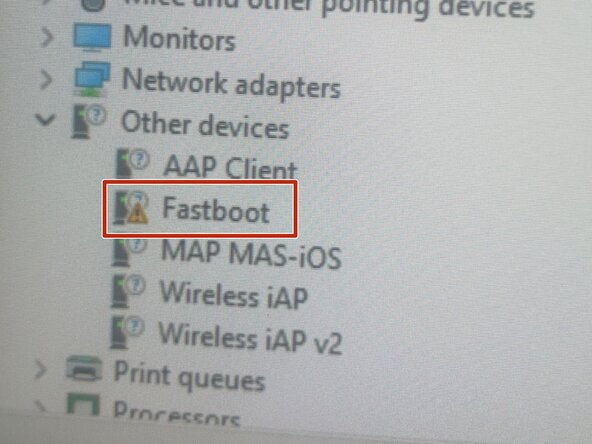
- APX showed up for me after a failed firmware flash. I did have to retry!
- Beforehand fastboot showed up as an unknown device. Maybe what did corrupt it, APX (NVIDIA’s USB recovery protocol) is a lower-level mode than Fastboot.
- To install the driver:
- Press Windows + R, type devmgmt.msc, and press Enter.
- Look under Other devices or Universal Serial Bus Devices for something like Unknown Device, Fastboot, or APX.
- Right-click it and choose Update driver.
- Select Browse my computer for drivers → then Let me pick from a list of available drivers. Click Have Disk, then browse to your extracted platform-tools folder or where the Google USB Driver is located (usually inside the usb_driver folder).
- Select android_winusb.inf and choose Android Bootloader Interface or Fastboot Interface. Click Next and allow the driver to install.
- Download and extract platform-tools from Google's Android developer site. (Step 1!)
- Place it somewhere accessible, like C:\platform-tools.
- Open Command Prompt (Win + R → cmd) and navigate to the folder:
- cd C:\platform-tools
- To confirm ADB or Fastboot is working:
- adb devices
- fastboot devices
- If your Shield is connected and in fastboot mode, you should see its serial number.
- Open Command Prompt in the extracted firmware folder.
- Confirm connection:
- fastboot devices
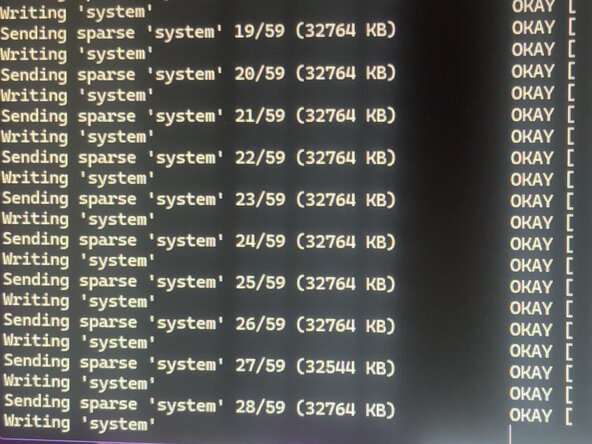
- Run the following commands in sequence:
- fastboot oem unlock
- fastboot erase userdata
- fastboot flash staging blob [Next Step->]
- fastboot flash boot boot.img
- fastboot flash system system.img
- fastboot flash vendor vendor.img
- fastboot flash recovery recovery.img
- fastboot reboot
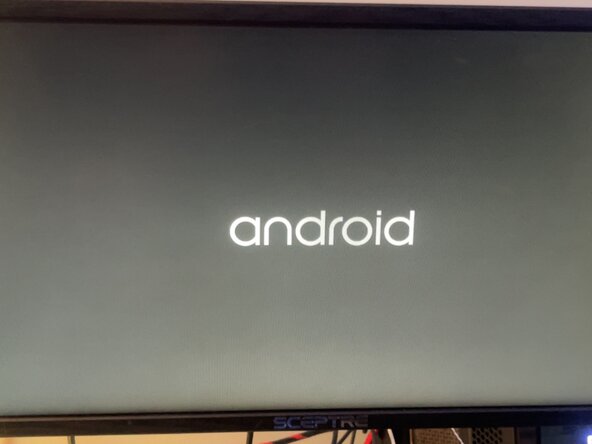
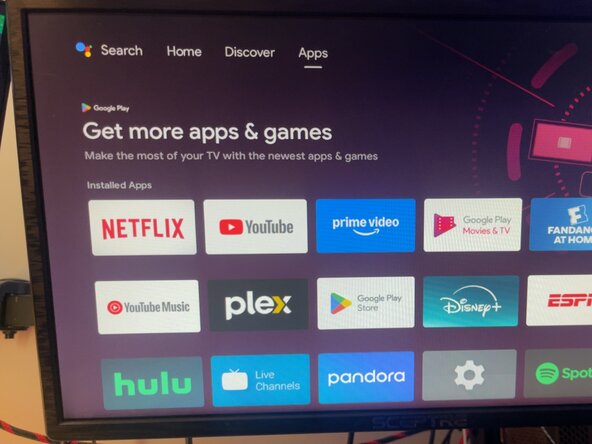
- First boot may take a few minutes! And it may still show the original splash screen first! But give it a moment, and it should switch to Android as in the image.
- Shield boots into Android TV (Shield UI)
- Enplug system is gone
- Enplug splash screen may still appear briefly (cosmetic only)
- If you're able to locate a working splash.img file from a stock Shield, please share it with the community! It may allow others to overwrite the Enplug splash if the hardware permits. Ideal sources would be a dumped bootloader.img extracted from a known clean unit. Feel free to provide partition dumps, ADB paths, or splash partition offsets.