Logitech MX Master 3S for Mac Battery Replacement
ID: 193636
Description: Follow this guide to replace a worn-out or dead...
Steps:
- Flip the mouse's power switch into the OFF position, unplug any cables, and flip it over so the feet are facing up.
- The unique shape of some mice can prevent them from laying flat. If you need to, lay your mouse on a soft towel to prevent wobble.
- If you're planning to reuse your existing feet, note that the adhesive needs to be thoroughly heated for them to be cleanly removed.
- Heat an iOpener and apply it to a foot for about one minute.
- Alternatively, you can use a hair dryer to soften the feet adhesive.
- When using a hair dryer, don't heat the feet for more than a couple seconds at a time—anything hotter than just warm to the touch risks melting or warping the plastic lower case.
- The information sticker adhesive may soften during this step, but you don't need to remove it.
- The front foot doesn't cover any screws. If you're only removing the mouse feet to open up the mouse, you don't need to remove the front foot.
- Slide an opening pick under an edge of a foot.
- Go slowly, and make sure the pick slides underneath both the foot and its adhesive pad. These layers separate easily.
- If you plan on reusing your mouse feet, be careful not to crease them or separate them from their adhesive pads.
- If the foot feels stuck, apply more heat before continuing.
- Slide your pick under the foot to separate its adhesive until you can grab it with your fingers.
- Peel up and remove the left foot.
- Repeat the previous two steps for the remaining feet.
- If the adhesive separated from the foot:
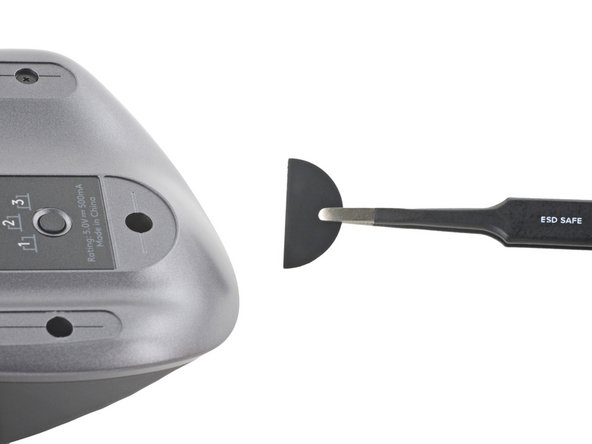
- Slide the flat end of a spudger under an edge of the adhesive. If the adhesive seems stuck, you may need to heat the adhesive further.
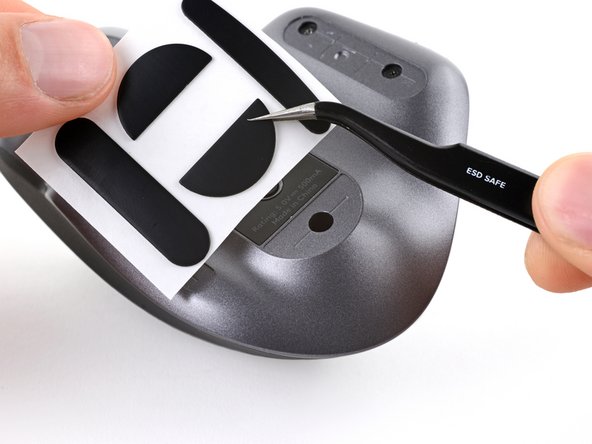
- Use a pair of tweezers or a spudger to remove any large chunks of leftover adhesive.
- For installing new mouse feet or reusing your old ones:
- Thoroughly clean the bottom of the mouse with isopropyl alcohol and a lint-free or microfiber cloth. Allow the surface to dry completely.
- Peel your new mouse feet away from their adhesive liners and press them firmly into place.
- Use a Phillips screwdriver to remove the five 4.3 mm‑long screws securing the bottom half of the lower case.
- Use a T5 Torx driver to remove the one 4.2 mm‑long screw securing the top half of the lower case.
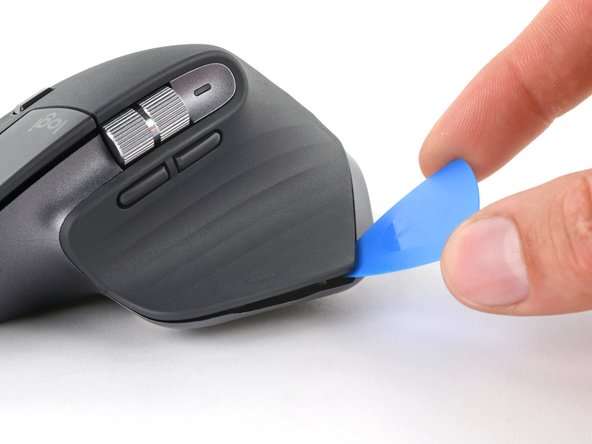
- Insert your opening pick into the seam between the thumb rest and the lower case.
- Slide your pick right, towards the rear of the upper shell and pry upward to release the left clips.
- Gently pry the upper shell and lower case apart to release the clips on the right side of the mouse.
- Don't try to fully remove the top shell just yet—another clip and a delicate cable connect the upper shell to the lower case.
- Lay your mouse down onto your work surface, making sure none of the clips re-engage.
- Grasp the upper shell and partially lift up the right edge.
- Pull the upper shell up and back to release the final clip and separate the upper shell from the lower case.
- Still keep the two halves close together—a cable is still tethered to the upper shell.
- To reinstall the upper shell, slide the front edge into place first, then press down around the perimeter of the upper shell to engage the remaining clips.
- Be careful not to strain the cable connecting the upper shell to the lower case.
- Lift the upper shell away from the lower case and lay it to the right of the mouse.
- Use the flat end of a spudger to gently lift up the sliding lock on the interconnect cable socket.
- Slide the cable straight out of its socket on the motherboard.
- During reassembly, insert the cable into the socket with its blue tab facing out, then push down the sliding lock to secure the cable.
- Remove the upper shell from the lower case.
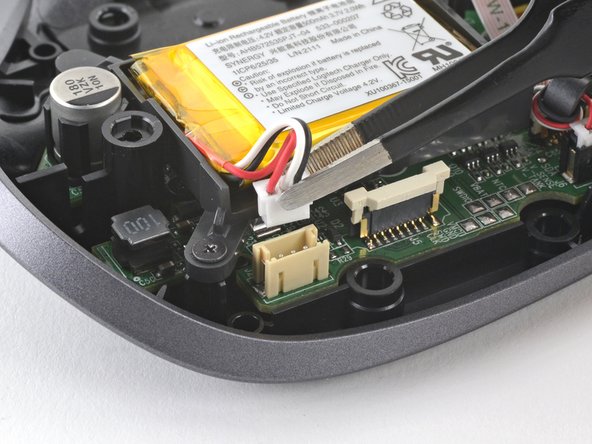
- Use a pair of tweezers to grip the top of the battery connector.
- Always pull cables by their connectors and not the wires themselves.
- Gently rock the connector side to side and pull it out of its socket.
- The connector is held tightly within its socket. If it feels stuck, try a different grip—use the protrusions around the neck of the connector if you need more leverage.
- If the connector won't budge, skip to the next step for an alternate method.
- If your battery connector still feels stuck:
- Insert each arm of a pair of pointed tweezers into the cutouts on the side of the battery connector's motherboard socket.
- Push the connector up, just enough to grip the top of the connector with another pair of tweezers or your fingers.
- Pull the battery connector completely out of its socket to disconnect it.
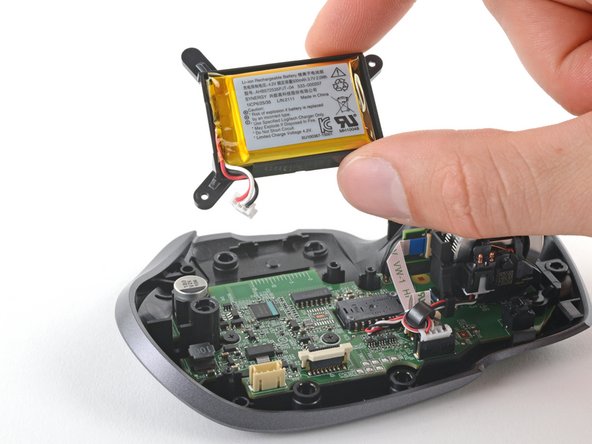
- Use a Phillips screwdriver to remove the two 3.5 mm-long screws securing the battery housing.
- Remove the battery housing from the lower case.
- The battery is secured within its housing by some light adhesive.
- Flip the battery housing over so the battery is facing down.
- Apply a heated iOpener to the battery housing for about 2 minutes to soften the battery adhesive.
- Insert an opening pick between the battery and its housing at the side opposite the battery cable.
- Push the opening pick under the battery and lift up to pry the battery out of its housing.
- Make sure you push underneath the battery and not into it. Don't bend, crease, deform, poke, or puncture the battery—a damaged battery is a potential fire hazard.
- If you encounter significant resistance, pause and reheat the adhesive.
- Remove the battery.
- To install a new battery:
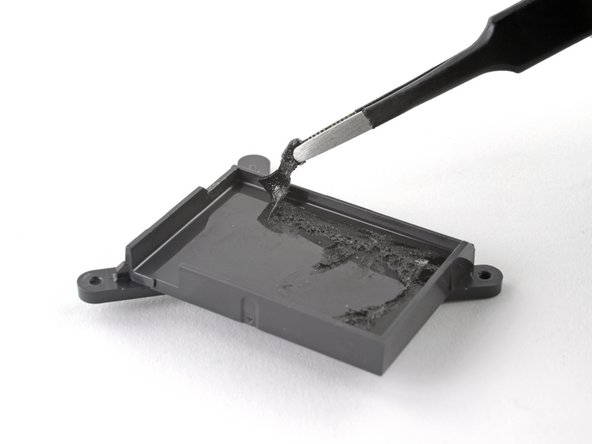
- Use a spudger or your fingers to peel any old adhesive off of the battery housing. The old adhesive shouldn't leave any residue.
- If your new battery doesn't come with preinstalled adhesive, place a couple strips of double-sided tape into the battery housing.
- Orient your new battery so its cables route through the cutout in the corner of the housing. Press the battery firmly into place to secure it.