HP 15-dw0037wm Speaker Replacement Guide
ID: 199385
Description: If your HP 15-dw0037wm laptop produces...
Steps:
- Before you begin, discharge your laptop battery below 25%. A charged lithium-ion battery can catch fire and/or explode if accidentally punctured.
- Power off your laptop and disconnect the charger and any peripheries before beginning disassembly.
- Set the laptop down with the lower case facing up.
- Lift a corner of the lower silicone foot and peel it completely off.
- Repeat for the upper silicone foot.
- Use a Phillips screwdriver to remove the five 8 mm screws.
- Remove the two 5 mm Phillips screws.
- Insert an opening pick into the gap between the lower case and chassis.
- Starting from a corner is recommended.
- Slide the pick around the entire perimeter of the device until the lower case fully releases.
- Remove the lower case.
- Use a Phillips screwdriver to remove the the four 4 mm screws that secure the battery.
- Lift the battery out slowly to disconnect it from the socket that connects it to the motherboard.
- Removing the battery quickly can damage the socket that the motherboard is connected to.
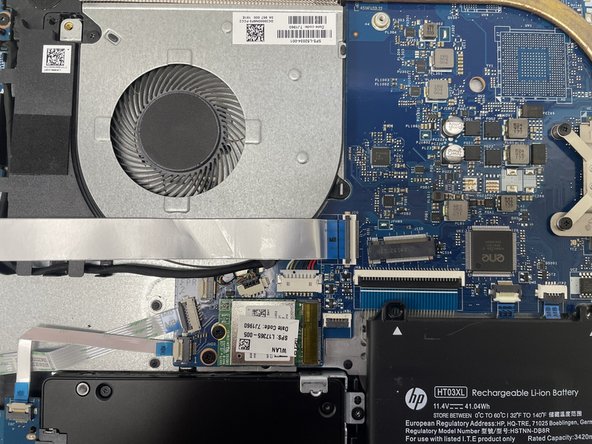
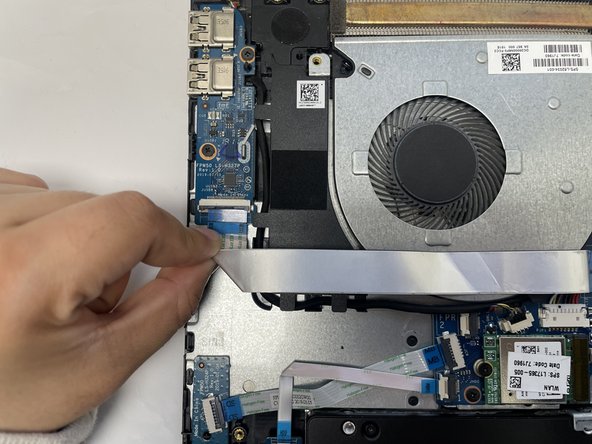
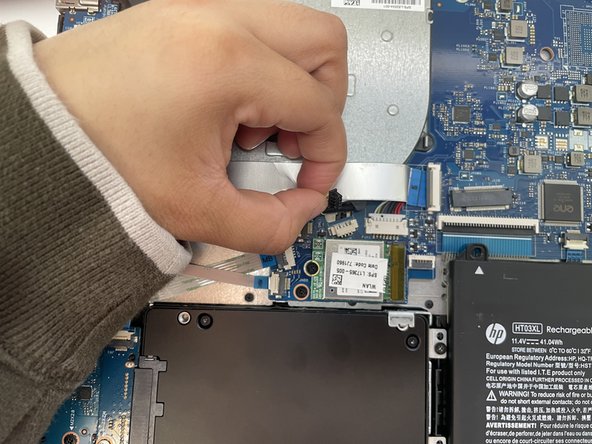
- Use your fingernail or a spudger to gently lift the black ZIF locking flap that secures the ribbon cable.
- Repeat the previous bullet on the other end of the ribbon cable.
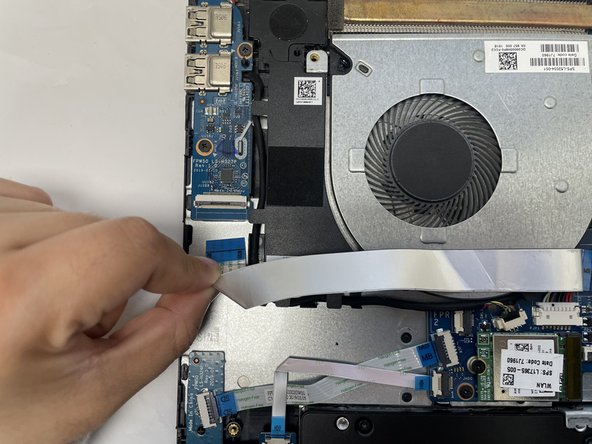
- Slide the ribbon cable out from the socket gently.
- Repeat on the other end of the ribbon cable.
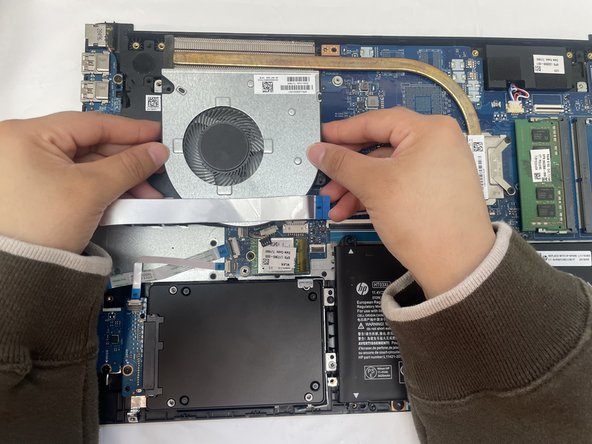
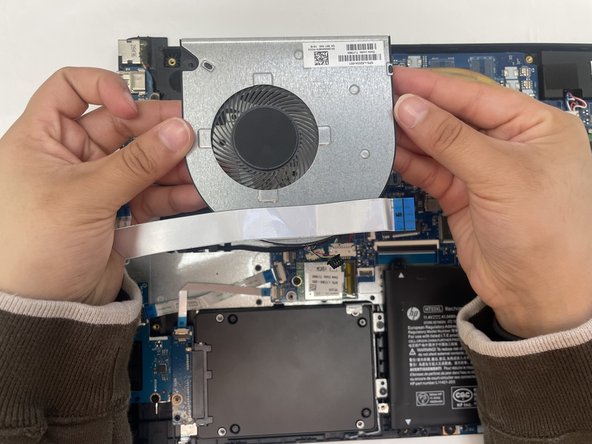
- Gently using your fingernails to push the fan connector out of its motherboard socket.
- Remove the one 4 mm screw securing the fan with a Phillips #1 screwdriver.
- Grip and lift the fan up and out of the chassis.
- Use a Phillips screwdriver to remove the four screws that secure the heatsink to the CPU and motherboard, then carefully remove the heatsink.
- Now that the heatsink has been removed, use rubbing alcohol and a lint-free cloth to gently clean the old thermal paste before applying thermal paste to the replacement heat sink.
- Check out the official thermal paste replacement guide for more information.
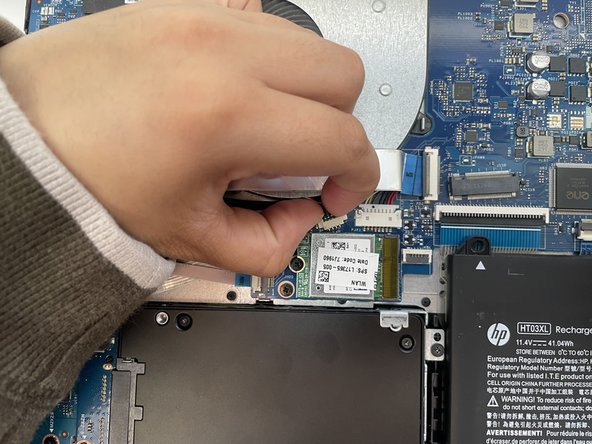
- Use an opening tool to pry up and disconnect the two wireless card coaxial connectors.
- Remove the four Phillips screws securing both display hinges.
- Use an opening tool to lift the left hinge vertically.
- Use an opening tool to lift the right hinge vertically.
- Identify the four ZIF ribbon cables on the motherboard.
- Use your fingernail to lift each locking tab gently.
- Pull each ribbon cable straight out, keeping it parallel to the board.
- Do not twist or bend the ribbons sharply, as they can tear easily.
- Flip the black locking flap on the ZIF connector and disconnect the cable.
- Disconnect the speaker connector.
- Ensure all motherboard connections are disconnected before continuing.
- Remove the three Phillips screws securing the motherboard to the chassis.
- Gently lift one corner of the board and slide it out of position, being mindful of any remaining cables underneath.
- Handle the board only by it's edges to prevent static damage.
- Remove the motherboard.
- Remove the two screws securing the daughterboard to the chassis.
- Use an opening tool to lift up the board gently.
- Remove the board.
- Ensure the speaker cable is fully untangled from the frame and clips.
- Confirm that the cable path is fully accessible before removing the speakers.
- Gently lift both sides to completely free the speakers.
- Avoid using the wire as leverage because it can easily detach from the speaker housing.
- Position the new speakers in the same orientation as the original.
- Align them securely in their compartments.
- Route the connecting cable along the same path, pressing it into the retaining clips.