HP 14-cf2112wm Motherboard Replacement
ID: 199575
Description: If your laptop does not turn on, fails to...
Steps:
- Before you begin, shut down your laptop and disconnect all cables.
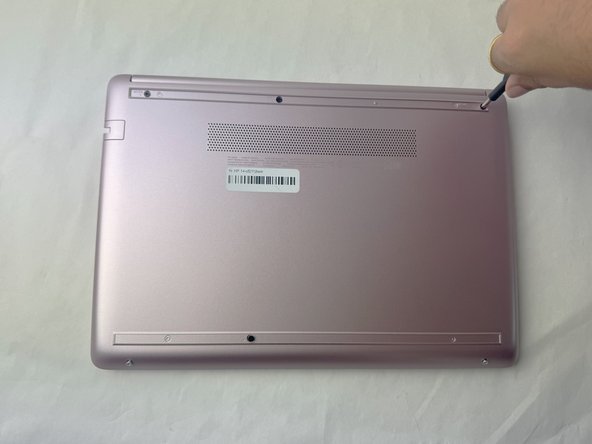
- Turn the laptop over so the bottom case is facing up.
- Use a spudger to pry under the end of the screw cover.
- When the edge is lifted up, use your fingers to pull the rest of the strip off.
- Try to keep the strip intact so you can replace it at reassembly.
- Use a Phillips #1 screwdriver to remove six 6 mm screws from the back case.
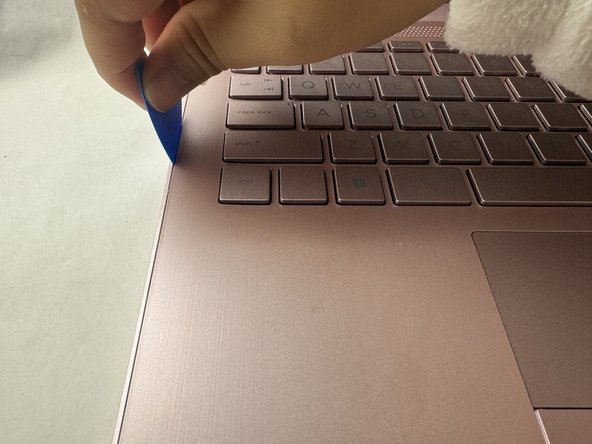
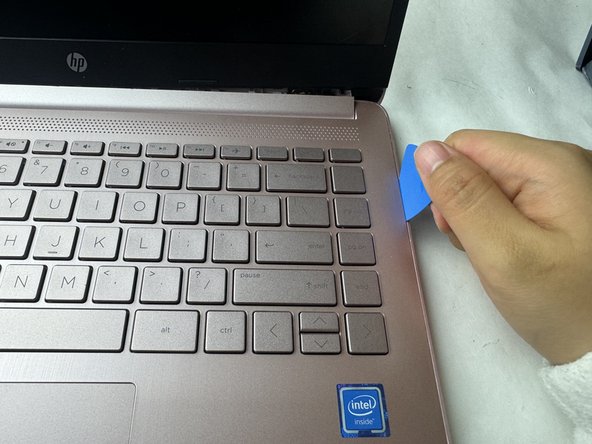
- Use a pick or opening tool to pry along the edges of the back cover from the keyboard side of the laptop.
- Be careful as the case edges are sharp.
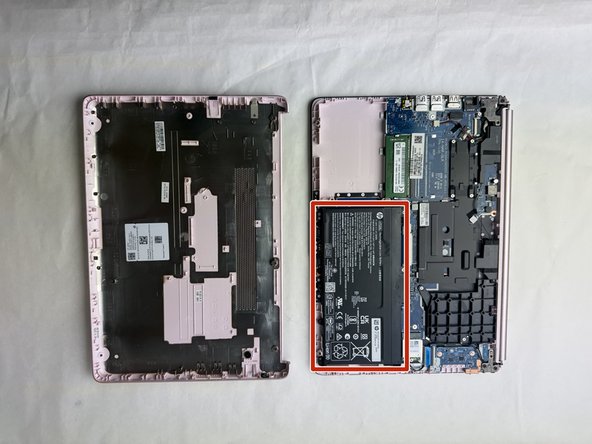
- Lift the back cover off the laptop.
- Place your opened laptop on a flat surface.
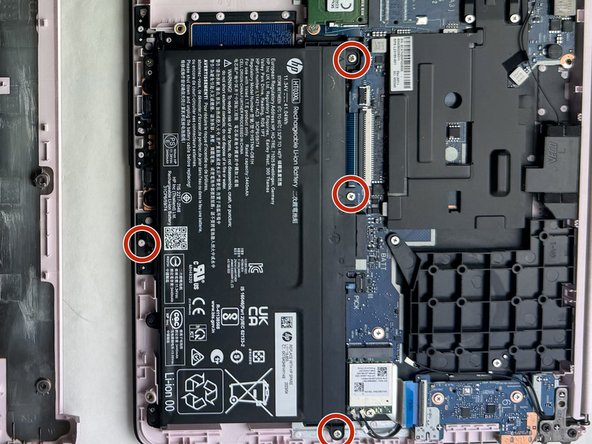
- Use a Phillips #1 screwdriver to remove the four Phillips 3.0 mm screws securing the battery.
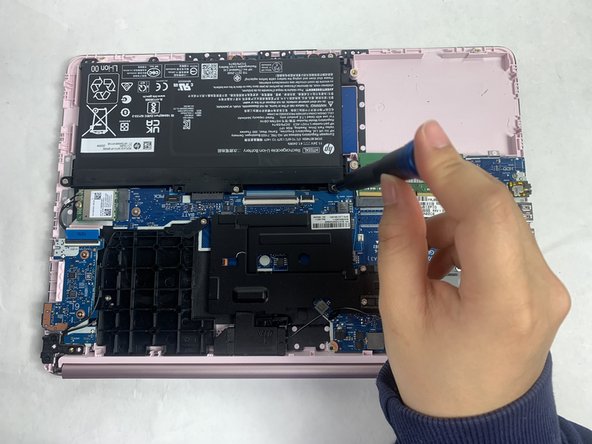
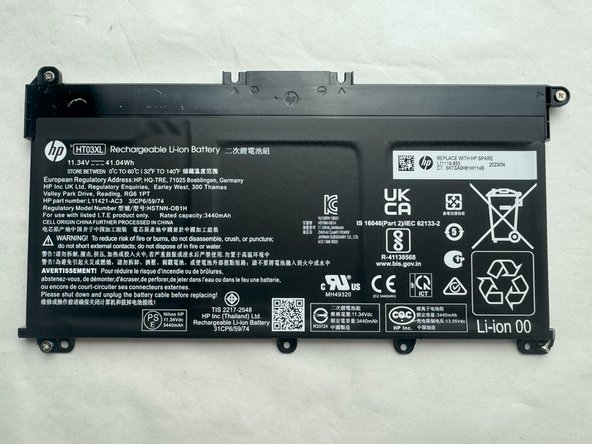
- Slide the battery out from the connector on the motherboard.
- For reference, the Wi-Fi card is near the middle left of the image.
- Use an opening tool to pry up and disconnect the two Wi-Fi card coaxial cable connectors.
- The wire with the white tab attached should connect to spot number 1 on the Wi-Fi card. The wire with the black tab attached should connect to spot number 2.
- Remove the 3 mm-long screw securing the Wi-Fi card with a Phillips #1 screwdriver.
- Pull the Wi-Fi card out of its socket.
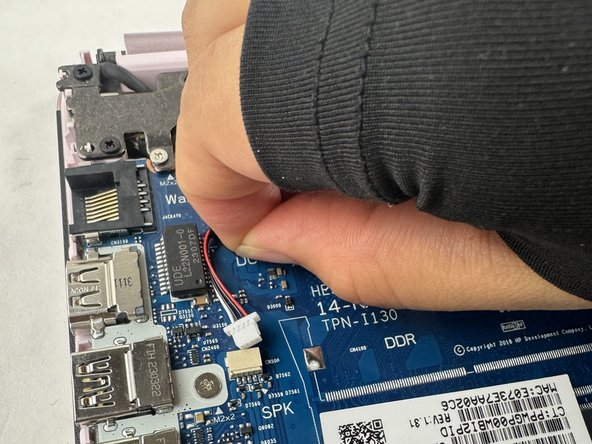
- Use your fingers or tweezers to pull out the speaker cable from the slide connector socket on the motherboard.
- Don't pull on the wires as it may damage the connector or cable.
- If that doesn't work, use the point of a spudger to push on alternating sides of the connector to "walk" it out of its socket.
- It may take a lot of alternating before the connector comes out.
- To reconnect the cable, align the connector and use a spudger or clean fingernail to push it fully into the socket.
- Don't push on the cables themselves, or you may damage the connector.
- Remove the tape holding the cables to the motherboard.
- Remove the speakers.
- A loose plastic piece may or may not fall out during this step, but you can press it back in place between the speaker and the motherboard.
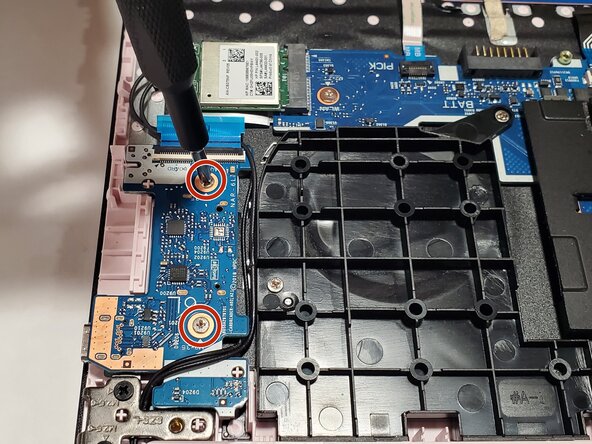
- For reference, the daughterboard is near the bottom left of the image.
- Flip up the black locking flap securing the ribbon cable to the daughterboard.
- Disconnect the ribbon cable.
- Remove the two 2 mm wide sliver screws securing the daughterboard with a Phillips #1 screwdriver.
- Use an opening tool to pry up and disconnect the two Wi-Fi card coaxial cable connectors.
- The wire with the white tab attached should connect to spot number 1 on the Wi-Fi card. The wire with the black tab attached should connect to spot number 2.
- Unseat the Wi-Fi card cables from beneath the daughterboard.
- Remove the daughterboard by lifting it upwards, then sliding it out towards the touchpad.
- For reference, this is what it should look the Wi-Fi card, battery, speakers, and daughterboard are removed.
- Remove the 3 mm-long screw near label named "BATJ" with a Phillips #1 screwdriver.
- Remove the 3 mm-long screw near the label named "WLAN" with a Phillips #1 screwdriver.
- Remove the remaining 3 mm-long screw on top of the large piece of black plastic labelled "A-1" with a Phillips #1 screwdriver.
- Remove the large piece of black plastic.
- Remove the two 6.5 mm-long black screws with a Phillips #1 screwdriver.
- Remove the one 3 mm-long screw on the metal hinge with a Phillips #1 screwdriver.
- Bend the hinge upwards with your fingers or, if easier, with a plastic opening tool.
- Remove the wide 2 mm-long screw next to the RAM module with a Phillips #1 screwdriver.
- Remove the 3 mm-long screw next to the label named "SPK" with a Phillips #1 screwdriver.
- Remove the 3 mm-long screw next to the label named "HHD" with a Phillips #1 screwdriver.
- Flip up the two black locking flaps near the touchpad, one wide and one thin.
- Disconnect the two ribbon cables with blue ends.
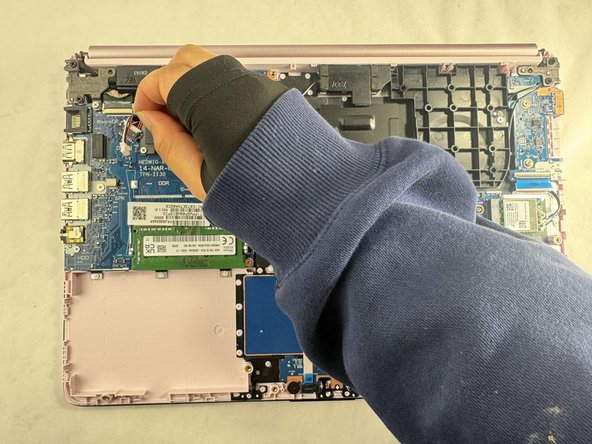
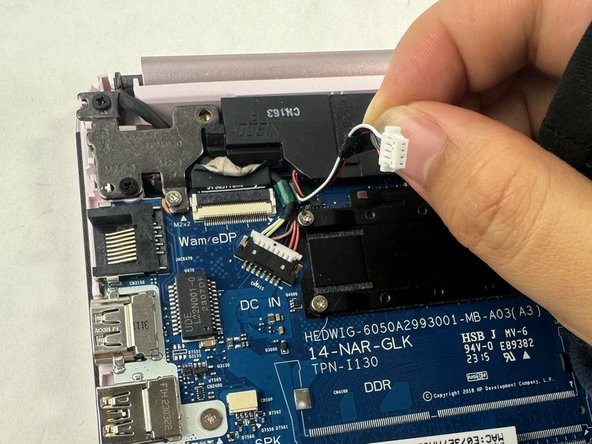
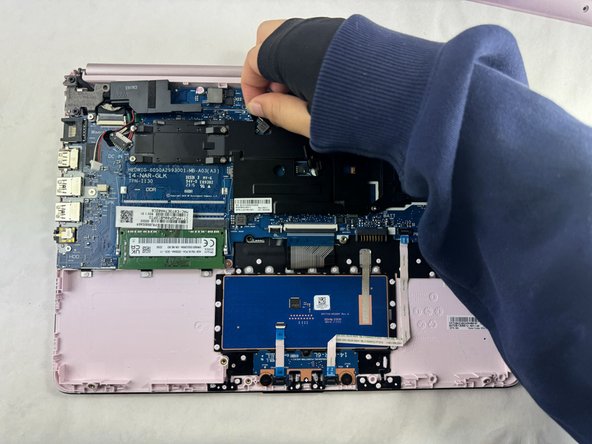
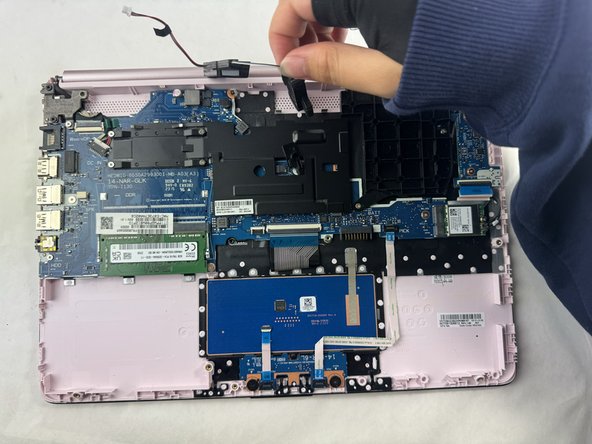
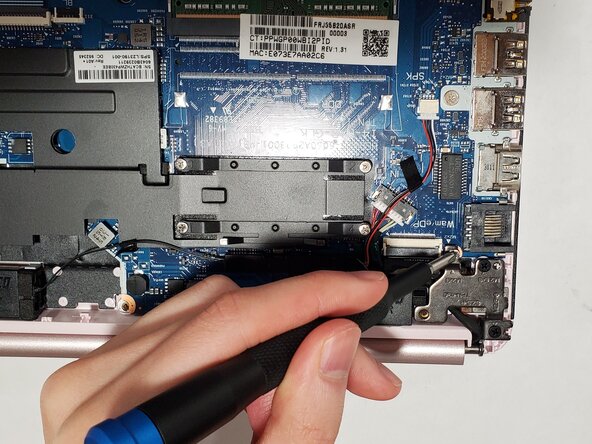
- Remove the wire next to the label named "Wam/eDP".
- If needed, use tweezers to pull the wire away, but only after the wire is disconnected.
- Flip up the locking flap securing the display connector.
- Disconnect the display connector.
- Slide the motherboard up and outwards toward the touchpad.